I love this treasury, made by hrt2hand, showing a few of the endangered species, that we need to protect, and there are many more...
I am proud to be included in it with my coral wall hanging.

felting, natural dyeing tutorials, learn to felt step by step beginners experienced feltmakers

Showing posts with label etsy treasury. Show all posts
Showing posts with label etsy treasury. Show all posts
Friday, October 8, 2010


Wednesday, August 4, 2010
Rusty Purples - an Etsy Treasury
I am so stunned to be included in this beautiful treasury, the colours are amazing: I love them. It gives a different look to all the items to see them grouped together like this. Well done lillya
 You can visit all the items and the shops included here:
http://www.etsy.com/treasury/4c58504a709d8eef22153de1/rusty-purples
 You can visit all the items and the shops included here:
http://www.etsy.com/treasury/4c58504a709d8eef22153de1/rusty-purples
Friday, June 11, 2010
Pure White - Etsy Treasury
Thanks to Glassimo for including my shawl in her "Pure White" etsy treasury. It is great to see all these white items together. http://www.etsy.com/treasury/4c1165d10a5a6d91f4e5652e/pure-white
 http://www.etsy.com/treasury/4c1165d10a5a6d91f4e5652e/pure-white
Thursday, June 10, 2010
Aquatic Life - Etsy Treasury
My "Aquatic Movement" shawl is in another treasury, that it the second in a week time.
This one is called Aquatic Life and is made by earlybirdcreations, another Australian etsy artist.

This one is called Aquatic Life and is made by earlybirdcreations, another Australian etsy artist.

Monday, June 7, 2010
Felt Up and Blue - Etsy Treasury
Here is another etsy treasury where my "Aquatic Movement" shawl is included. This time it is all about felted items and it has been put together by alienlabel
 You can visit the treasury here
 You can visit the treasury here
Monday, May 3, 2010
May Day - Treasury
I can't resist showing this beautiful "May Day" etsy treasury, filled with gorgeous lavender and purple items, chosen by fashiongreentbags.
I am grateful to be included with my butterfly flight shawl.
 You can still visit the treasury until Tuesday May 4 2010:
I am grateful to be included with my butterfly flight shawl.
 You can still visit the treasury until Tuesday May 4 2010:
Wednesday, April 28, 2010
People on Etsy - Treasury
menzocollection decided to make a treasury, featuring etsy people "because we're all the face of etsy". What a great idea.
I am grateful to be included, actually, it is my daughter, wearing my light blue funky nuno felted top.
I am grateful to be included, actually, it is my daughter, wearing my light blue funky nuno felted top.

Sunday, April 4, 2010
Australian Treasures
I just felt like sharing this amazing etsy treasury "Australian Treasures", made by artnomadix.
And of course, I am proud that my shawl "Butterfly Flight" is included.
 Visit the treasury page until Tuesday april 6th and visit the Australian etsy artists:
And of course, I am proud that my shawl "Butterfly Flight" is included.
 Visit the treasury page until Tuesday april 6th and visit the Australian etsy artists:
Sunday, March 14, 2010
Kaleidoscopic Colorwheel
Today, I am included in Kaleidoscopic Colorwheel by paulajeansgarden with my card game, Living Landscapes.

Friday, March 12, 2010
Check out this treasury - First Spring Rhubarb
 The treasury will be online until Sunday 14 march, visit here:
Friday, March 5, 2010
Handmade is always the best! - an etsy treasury
Thanks bayahta for featuring my Coral Felt Wall Hanging in this beautiful treasury.

This treasury will be online until March 7th and you can visit at the following link:
http://www.etsy.com/treasury_list.php?room_id=117196
http://www.etsy.com/treasury_list.php?room_id=117196
Saturday, February 6, 2010
Treasury: SHE knows her BARGAINS
Here is a lovely treasury made by allthesethings for those who are looking for sales. I have a few items on sale in my etsy shop and just found out that my Blue Curled Short Sleeved Jacket is in it.
 Check out the treasury here:
 Check out the treasury here:
Be quick because it expires on February 9.
Saturday, January 9, 2010
I am in a New Treasury - Take Your Vitamins
My Felt Necklace, " Morning Sun", is featured in this beautiful sparkly treasury, "Take Your Vitamins", made by veryverdant.
 You can still see it until Monday January 11 at the following link:
http://www.etsy.com/treasury_list_west.php?room_id=82424
 You can still see it until Monday January 11 at the following link:
http://www.etsy.com/treasury_list_west.php?room_id=82424
Friday, January 8, 2010
How to Copy an Etsy Treasury using Gimp.
I have come up with this method that works for me, using the gimp, which is free to download from the internet by following this link:
http://www.gimp.org/downloads/
TAKING A SCREENSHOT
Open the treasury you want to copy. On my computer, I can not see the whole treasury at once, so I make sure to have the top half on the screen. I will copy the treasury in 2 parts.

Open the gimp.
Go to File - Create - Screenshot
A new window will open where you can choose between:
- Grab a single window
- Grab the whole screen
I usually choose the first one, grab a single window.
Click on Grab.
Grab the crosshair and drag it to the window with the treasury.
You now have copied the top half of the treasury, it will automatically open in a new window.
Go to the web page with the treasury and place the bottom half on the screen.

Repeat the same process as with the top half.
Once you drag the crosshair to the treasury, a new file opens in gimp with the bottom part of the treasury.
You now have 2 files, each one with a part of the treasury and the rest of the webpage that comes with it. Let's clean it up and select the part we want to copy.
We start with the first window and we are going to crop the part of the treasury we would like to copy.
Select the crop tool from the toolbox dialog or alternatively, click on Tools - Transform Tools - Crop and the crop tool will be available.

Move the cursor over the part you want to select and draw a rectangle over it. If it isn't right from the first time, you can always have another go or stretch one of the sides with the cursor. Once you have selected the area, click on one of the squares in the corner.

Now you have cropped the image. If by chance you want to change it, you can always go to edit and undo any action, as long as you haven't saved it.

Repeat this whole process for the bottom part.
PASTING
You will have 2 partial images of the treasury now. I used to save them and paste them into blogger as 2 separate images. I will show you how you can make one image out of them:
In one of the windows click File - New :
A window pops up.

You will need to decide on the size of the image. The size that pops up is the one from the image of half the treasury. Make the width somewhat larger.
The height needs to be at least twice the size, I make it a bit longer, we can recrop that later.
Click OK.
Go to the top treasury window. Right click on the image - Edit - Copy
Now go to your new image and right click it - Edit - Paste

Click the Move Tool.

Or click Tools - Transform Tools - Move
Bring the image to the top of the template.

When it is in the right place, right click on it - Layer - Anchor Layer
Do the same with the bottom image.
You can see in the picture that the 2 images are overlapping, so move the bottom image to where you want it to be.

Make sure to anchor the layer when the image is in the right position.
If you'd like to crop the image a bit, you can do it to take away some of the white background, but it is not necessary.
the image is ready, the only thing left to do is save it on your computer.
SAVING.
Click File - Save as
a window pops up, name the file.

Choose in which folder you want to save it.
I also select jpeg as a file type in both places provided for it.
Click Save.
A new window pops up "save as jpeg": choose the quality of the image and click Save.

That's it, now you can copy it to where you want, your blog or social network, just as any other image.

This beautiful and inviting etsy treasury, "Put On Your Party Frocks N Dance" was made by SachiDesigns.
I hope this helps some of you, etsy sellers to show your treasuries on your blogs.
Feel free to comment or add links of other posts about copying treasuries.
Friday, January 1, 2010
Treasury: Taken with Teal.
Go and have a peek at Terrbear37's Shop as well, she is the maker of this beautiful treasury.

To visit this treasury online until January 2 2010 follow this link:
Thursday, December 10, 2009
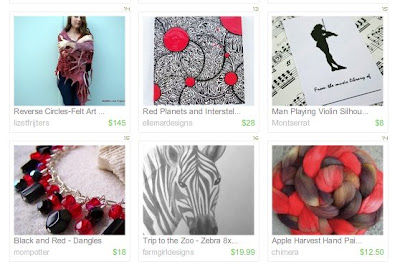
Etsy Treasury: SHE loves red and black.
This Etsy Treasury features Schooling at Home Etsians and was made by farmsteadladydesigns. I am very grateful to be included in this red and black treasury.


Thursday, November 26, 2009


Monday, November 23, 2009


Friday, October 30, 2009
Treasury; Just because I FELT like it.
And here is another etsy treasury, "Just because I Felt like it" made by nothingbutstring
It is full of original felt items. Thanks to nothingbutstring for including my "Swirls and Curls - Blue Felt Art Shawl"


It is full of original felt items. Thanks to nothingbutstring for including my "Swirls and Curls - Blue Felt Art Shawl"


Friday, October 23, 2009
I am featured in another treasury: Warm...
Anasousa made this treasury, featuring warm Autumn items, from some of her friends. This are all very useful items when going into Autumn and Winter, which is the case in the Northern Hemisphere, while we will be sweating soon here in Australia!
Visit Anasousa's shop: http://www.etsy.com/shop.php?user_id=5024568

Visit Anasousa's shop: http://www.etsy.com/shop.php?user_id=5024568


Subscribe to:
Posts (Atom)
LinkWithin
